


NYSOH Mobile Upload
4.8943.00 Reviews
App Specs
- Version
- 3.2
- Updated On
- License
- Free
- Downloads
- 100,000+
- Developer
- MAXIMUS
- Categories
- Medical
- Platform
- Android
Screenshots
 Analysis by AppCompare
When a health-plan application asks for proof, the difficult part is often not finding the document. It is getting the right file from your phone to the right place without losing track of what was sent. NYSOH Mobile Upload is built for that narrow but important moment: sending documents to the NY State of Health marketplace. I see it as a practical companion for people handling enrollment or eligibility paperwork on a phone, rather than as a general medical app.
That distinction matters. This is not an app for appointments, prescriptions, symptom tracking, or medical advice. Its job is administrative, and its value appears when a marketplace request leaves you with a scan, photograph, or saved document that needs to be uploaded. In my experience, focused tools like this can be less confusing than trying to manage a document through a broad health portal, especially when the immediate task is simply to submit evidence.
The app is free, aimed at Everyone, and comes from MAXIMUS. It has reached over 100 thousand installs and holds a 4.8 average from around 12 thousand ratings, which suggests that many users find the basic workflow useful. I would still treat those numbers as a sign of reception, not a promise that every upload will be effortless. Document submission depends on the quality of the file, the phone, the network, and the marketplace process around it.
What the app is really useful for
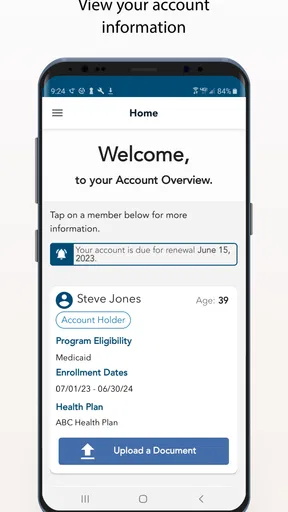
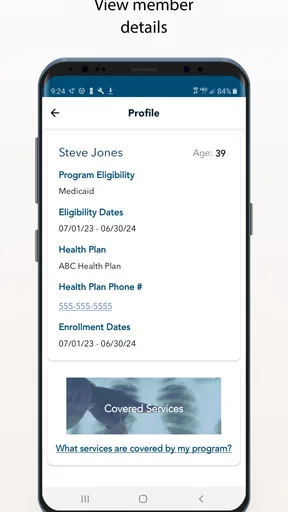
The strongest way to understand NYSOH Mobile Upload is as a single-purpose bridge between paperwork on your phone and a NY State of Health request. If you have received a notice asking for identity, household, income, residency, or other supporting material, the app gives you a mobile route for sending that material instead of waiting to use a computer.
A realistic example is a person who receives a request while away from home. They may already have a document photographed in their camera roll, or they may have a file saved in phone storage. Rather than postponing the task until they reach a desktop, they can use the mobile upload route while the paperwork is available. That is particularly helpful when the document is in a folder, email attachment, or cloud location accessible from the phone.
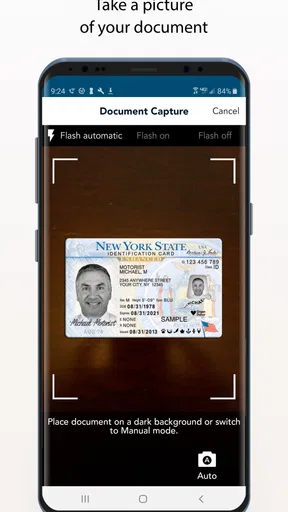
The important practical question is not only “Can I upload a file?” but “Can I identify the correct file before I send it?” Mobile screens make it easy to choose a similarly named image or an older photograph. I recommend preparing the document first: check that all pages are present, that text is readable, and that the image is not cut off at the edges. A clean file reduces the chance of a rejected or delayed submission far more than repeatedly tapping the upload button.
This app is best for a person who already knows what NYSOH is requesting. It is less suitable if you are still trying to understand a notice, decide which document qualifies, or resolve an eligibility question. Upload software can transmit a file, but it cannot replace careful reading of the request or advice from an appropriate marketplace representative.
Worth Reading Before You Choose

EA SPORTS FC Mobile 26 Is a Bigger Football Game, but It Takes Time

Flipboard Shows What News Apps Must Do Beyond the Feed

Switching to Android Auto Means Rethinking Your Driving Routine

Google Calendar Makes a Crowded Week Easier to Manage

Ludo King Makes the Most of the Minutes Between Plans

Baby Panda World Brings Quick Play to Modern Phones, but Its Game Library Feels Busy
Why a focused upload tool can beat the usual alternatives
The usual alternative is a desktop browser, often used with a scanner or a camera cable. That method can be more comfortable for organizing many pages, renaming files, and checking a large PDF. However, it also adds friction: you need access to the computer, the file may be on another device, and a scanner is not always nearby.
Another common alternative is sending paperwork by email or carrying printed copies somewhere. Those approaches may feel familiar, but they are not interchangeable with a dedicated marketplace upload route. Email can create uncertainty about the correct destination and whether the document is attached to the right case. Printed paperwork adds travel, handling, and waiting. A purpose-built mobile upload flow is more direct when the request is already tied to NYSOH.
My trade-off is straightforward: I would choose the phone app for one or a few documents that are already easy to access, and a computer for a large, carefully organized packet. The mobile route wins on immediacy. The desktop route usually wins when I need to inspect a long document, combine pages, or maintain a detailed filing system.
Connectivity changes the experience
I find that connectivity shapes this task before I even choose a document: a file can be ready, yet sending it still depends on a steady connection. I would plan around that handoff by preparing the paperwork first and choosing a place where I can wait for a clear result, rather than treating the upload like an instant share. That makes it easier to see where the network helps—and where it can leave me uncertain.
The moments when the network matters most
Because the central task involves sending a document to an online health-plan marketplace, connectivity is part of the experience rather than a minor convenience. A document may look ready on the phone, but the submission still depends on communication with the service. I would avoid starting an important upload in a place where the signal is weak, switching repeatedly between Wi-Fi and mobile data, or relying on a crowded public network.
A stable connection is especially valuable after selecting a file. If the upload appears to pause, the safest response is patience rather than immediately pressing the control several times. Repeated attempts can make it harder to know which submission, if any, completed. I prefer to wait for a clear result, then check the marketplace account or related confirmation before trying again.
This is one of the app’s less glamorous realities: it cannot make a poor connection behave like a reliable one. A slow network can make a small document feel as though the app has stopped responding, while an interrupted connection can leave the user unsure whether the file reached its destination. That uncertainty is not a reason to dismiss the app, but it is a reason to plan the upload instead of treating it like a casual photo share.
I would also avoid uploading from a moving vehicle or during a rushed appointment. Even if the phone has a signal, changing coverage can interrupt the process. A few quiet minutes in one location, with the document and account details ready, is a much better setting.
Using it in everyday mobile situations
The advantage of a mobile tool becomes clear in ordinary situations. You might photograph a letter at home, save a pay document from an email, or receive a request while working away from your computer. In each case, the phone is already where the document is. The app reduces the need to move that file to another device before beginning.
There is also a useful timing benefit. If you are near a dependable Wi-Fi connection, you can prepare the paperwork and submit it without waiting until later. That does not mean every request should be handled immediately without checking the details. It means the app supports a more flexible workflow when the document is ready and the network is suitable.
For someone helping a family member, the mobile context requires extra care. Before selecting anything, I would confirm whose document is being sent and which marketplace case it belongs to. Phones often contain several people’s photos and files, and a quick upload can become a privacy mistake if the wrong item is chosen. The app’s convenience makes this double-check more important, not less.
Accessibility also affects whether the phone is the right tool. A small display may be fine for choosing one image, but it can be tiring for reading a long notice or comparing multiple pages. If you have difficulty seeing document details on a phone, I would use a larger screen to review the paperwork and reserve the app for the final transfer, provided the file is already prepared.
Recovering from a failed or uncertain upload
The most useful habit is to separate preparation from submission. First, gather the requested document and inspect it. Next, make sure the phone has enough battery and a dependable connection. Only then open the upload process. This sequence gives you a clear starting point if something goes wrong.
If an attempt fails, I would not immediately delete the original file or alter it. Keep the untouched document available, note what you tried, and reconnect to a stronger network before making another attempt. If the file is a photograph, take a new image only when there is a real quality problem, such as glare, missing edges, or unreadable text. Creating multiple near-identical copies can make later troubleshooting harder.
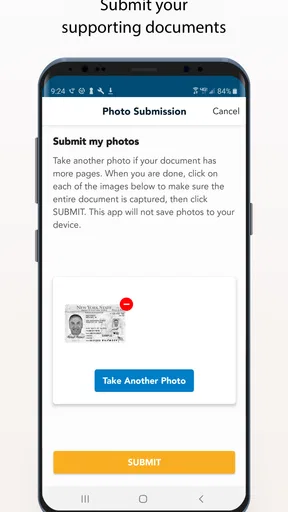
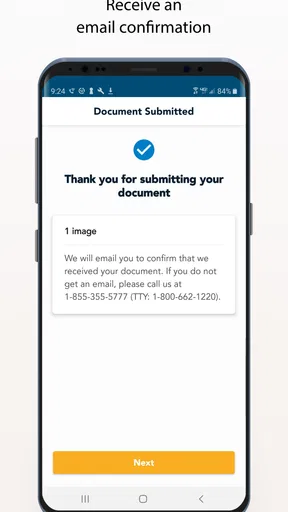
An uncertain result deserves special attention. If the app does not clearly show that the upload completed, check the relevant NYSOH account or submission status before resending. The goal is to avoid both errors: assuming success when nothing arrived, and sending the same material repeatedly without knowing which attempt was accepted. When the status remains unclear, contacting the appropriate NYSOH support channel is more sensible than endlessly repeating the upload.
This recovery approach is a genuine strength of a focused workflow: the task is narrow enough that you can keep a simple record. I would write down the document name, the date I attempted the upload, and any visible confirmation. That small note can be valuable if a notice later asks about the submission.
Being careful with mobile data and privacy
Document uploads may contain highly personal information, so I would use a trusted connection whenever possible and avoid handling sensitive files casually in public. The app’s purpose makes privacy awareness essential: a readable photograph can include more information than you intended, including details in the background or on the reverse side of a page.
Before uploading, inspect the entire image. Remove unrelated pages and avoid sending a photograph that includes another person’s paperwork. If the request calls for a specific document, sending extra material is not automatically helpful. It can create more information to review and increases the chance of exposing something irrelevant.
Mobile data is another practical consideration. I would prefer Wi-Fi for several pages or a large file, particularly if my data allowance is limited. A single clear page may be manageable over cellular service, but a batch of images can take longer and consume more data than expected. The sensible approach is to prepare everything first, then perform the transfer once rather than repeatedly retrying.
I also recommend keeping the original documents until the marketplace process is settled. The upload is a copy, not a replacement for the source paperwork. If a page needs to be resubmitted or clarified, having the original image or file makes the next attempt faster and reduces the temptation to photograph a document hastily.
Version, support, and who should choose it
The current version is 3.2, and the app requires Android 8.0 or later. That makes the device requirement fairly approachable for many Android users, but it still matters if you are using an older phone. I would check the operating system before planning an urgent submission, especially if the device belongs to a family member or has not been updated recently.
As a medical-category app, it may appear beside tools that offer broad health services, but its role is much narrower. That narrowness is a benefit when you need NYSOH document submission and do not want to search through unrelated features. It is a limitation when you expect account guidance, insurance comparisons, medical records, or ongoing care management.
I would recommend it to New York residents who have a marketplace document request, have access to an Android phone that meets the requirement, and want to submit from a mobile setting. I would steer someone toward a desktop browser or another established channel when they need to manage many files, read a complicated case history, or work with documents that are difficult to inspect on a small screen.
The free price removes one barrier, but it does not remove the need for a careful workflow. A free upload tool is useful only when the correct document reaches the correct marketplace process. I would not install it simply because it is listed under medical apps; I would install it when its specific NYSOH purpose matches a real task in front of me.
My connectivity verdict
After looking at the app through the lens of network-dependent paperwork, I see NYSOH Mobile Upload as a practical specialist rather than a complete health-management solution. Its best moment is simple: the requested document is already on your phone, the connection is steady, and you want to send it without waiting for a computer.
Its weaker moments come from the surrounding conditions. A poor signal, an unclear confirmation, a low-quality photograph, or a confusing notice can make the process feel more difficult than the app itself. The tool cannot decide whether a document is appropriate, repair missing pages, or remove the need to track what happened after submission.
My recommendation is positive, with a clear condition: use it deliberately. Read the request first, prepare a clean file, verify whose information it contains, choose a reliable connection, and keep the original until the matter is resolved. If you follow that routine, the app offers a convenient mobile path for a task that is often frustrating. If you need broad insurance help or detailed document management, the usual desktop or official support alternatives may serve you better.
For its intended purpose, the combination of a free app, an Everyone age rating, and a strong 4.8 average makes it an easy option to consider. I would judge it less by how many features it has and more by whether it helps me complete one important administrative step with fewer obstacles. In that focused role, NYSOH Mobile Upload earns my recommendation for eligible Android users who need a dependable, network-aware way to submit NYSOH paperwork from a phone.
Pros
- Uploads documents directly from your phone without mailing paperwork.
- Supports common image and document formats for application verification.
- Useful status updates can reduce uncertainty after submitting files.
- Designed for New York State of Health enrollment-related document requests.
- Can save time when responding to eligibility or renewal notices.
Cons
- Requires an active NY State of Health account or case information.
- Poor lighting or blurry photos may cause documents to be rejected.
- Large files or weak connections can make uploads take longer.
- Not intended for general insurance claims or unrelated document sharing.
- Users may need to contact support if an upload does not appear in their case.
FAQs for NYSOH Mobile Upload
What is NYSOH Mobile Upload used for?
NYSOH Mobile Upload is designed to help New York State of Health users submit documents from a mobile device. After receiving a request for verification, you can use the app to photograph or select files and upload them to your account. This can be useful for providing proof of identity, income, residency, citizenship, or other information requested during an insurance application or renewal.
Do I need a NY State of Health account to use the app?
In most cases, yes. The app is intended for people who already have, or are completing, a New York State of Health application and need to send supporting documents. You may need information connected to your account, such as an application or case reference, to ensure the upload is matched correctly. If you are unsure what to submit, check your online account or contact NY State of Health before uploading files.
What types of documents can I upload with NYSOH Mobile Upload?
The documents you can submit depend on the specific request shown in your NY State of Health account. Common examples may include identification, proof of address, pay stubs, tax documents, immigration records, or other eligibility evidence. The app generally allows you to capture a document with your camera or choose an existing image, but you should make sure every page is readable and belongs to the correct person.
Is NYSOH Mobile Upload safe for submitting personal documents?
Because the app is used for health coverage applications, it handles highly sensitive personal information. You should download it only from an official app store or a link provided by New York State of Health, and avoid sending documents through unofficial websites or messaging services. Use a secure internet connection, keep your phone updated, and review the upload confirmation so you know the files were submitted successfully.
What should I do if my document upload fails or is rejected?
First, check that the image is clear, complete, correctly oriented, and in a supported format or size. Retake blurry photographs, include all pages, and avoid glare, shadows, or cropped text. Confirm that you are uploading the document requested for your application. If the app continues to show an error, try again later or use your NY State of Health online account and contact official support for assistance.


